GAIn Web interface
The Getting Started on the Web section demonstrated how to annotate variants, positions, or regions on the GAIn web interface using an existing saved pipeline, both for single-annotatable queries and for annotation jobs. This section covers the web interface in more detail, with an emphasis on creating custom annotation pipelines by adding annotators or resources, and on user-account features such as registration, saved pipelines, annotation history, and user quotas.
Create annotation pipelines
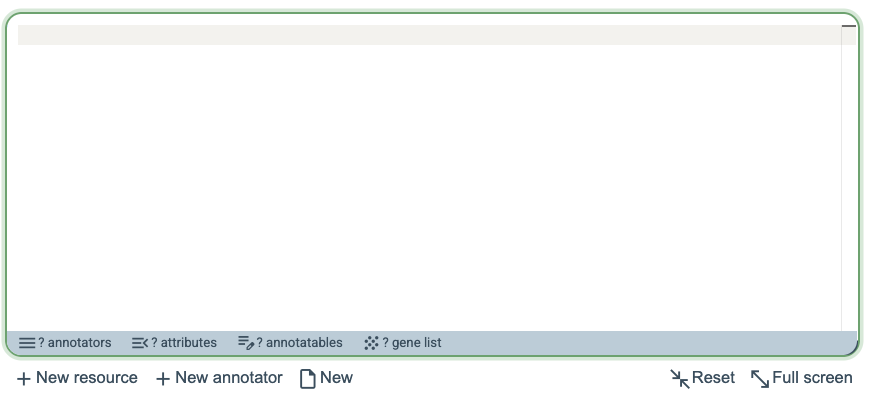
In the GAIn web interface (https://gain.iossifovlab.com/), the left side of the page contains the annotation pipeline editor. Saved annotation pipelines are displayed there and can be selected for immediate use. Clicking New at the bottom of the editor opens an empty pipeline definition for creating a custom annotation pipeline. In this initial empty state, the annotators and attributes panels at the bottom of the editor are empty, while the annotatables and gene list panels are not yet available. A custom pipeline can then be built either by adding annotators or by adding resources.
Add annotators
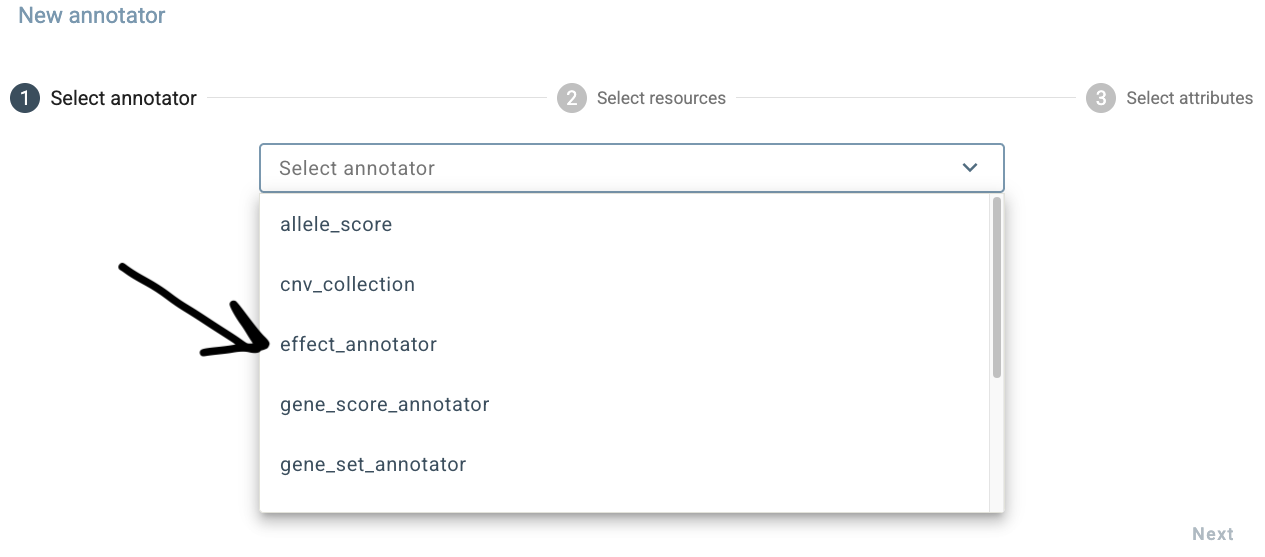
To add a new annotator, click New annotator at the bottom of the annotation pipeline editor. This opens a four-step dialog, with an optional final aggregation step. In the Select annotator step, select the type of annotator to add from the drop-down menu. In this example, choose effect_annotator.
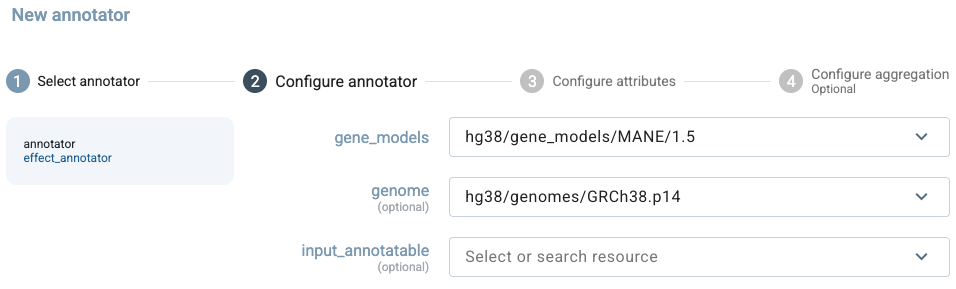
In the Configure annotator step, select the gene models resource that the effect_annotator will use. In this example, choose hg38/gene_models/MANE/1.5. The genome to use for annotation can be specified in the genome field. Here, select hg38/genomes/GRCh38.p14 and leave the optional input_annotatable field empty so that the annotator uses the input provided by the user.
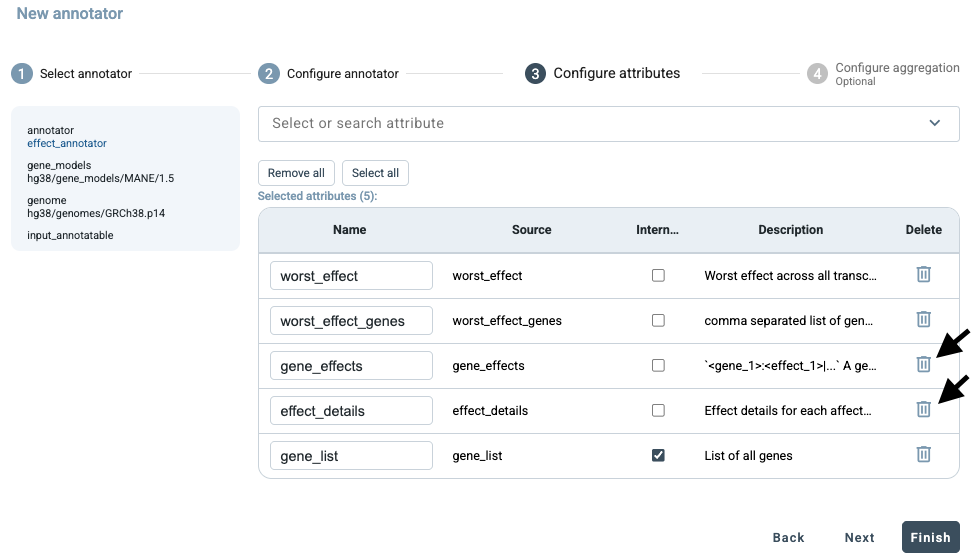
In the Configure attributes step, remove gene_effects and effect_details using the delete icons, leaving worst_effect, worst_effect_genes, and the internal gene_list attribute selected. Additional attributes can be browsed and added using the Select or search attribute box. In this example, we do not use the optional Configure aggregation step because effect annotations are not numerically aggregated. The only relevant setting is the separator used when multiple genes are returned in gene_list. Click Finish to add the annotator to the pipeline.
GAIn then generates the corresponding annotation pipeline definition and inserts it into the annotation pipeline editor using the correct syntax. The summary bar at the bottom of the editor shows the components currently present in the pipeline. In this example, the pipeline contains 1 annotator that produces 3 attributes. No annotatable has yet been defined, while 1 gene list is available for downstream use, representing the genes affected by the variant.
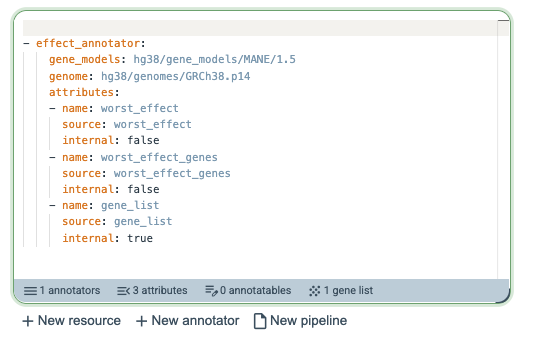
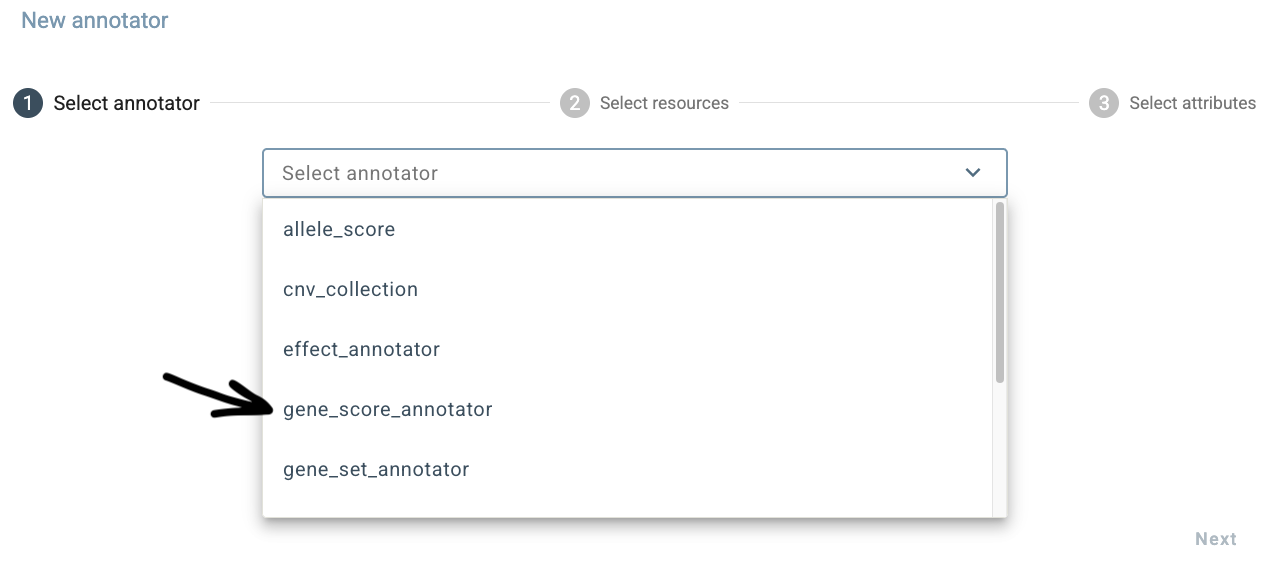
Next, add one more annotator by clicking New annotator, which opens the four-step dialog. Select gene_score_annotator as the annotator type. Unlike annotators that operate directly on the input annotatable, a gene score annotator operates on genes and therefore requires a gene list as input. In this example, the required gene_list is already available from the previously added effect_annotator, which identified the genes affected by the input variant. We will use this gene list to add the LGD gene score in the following steps.
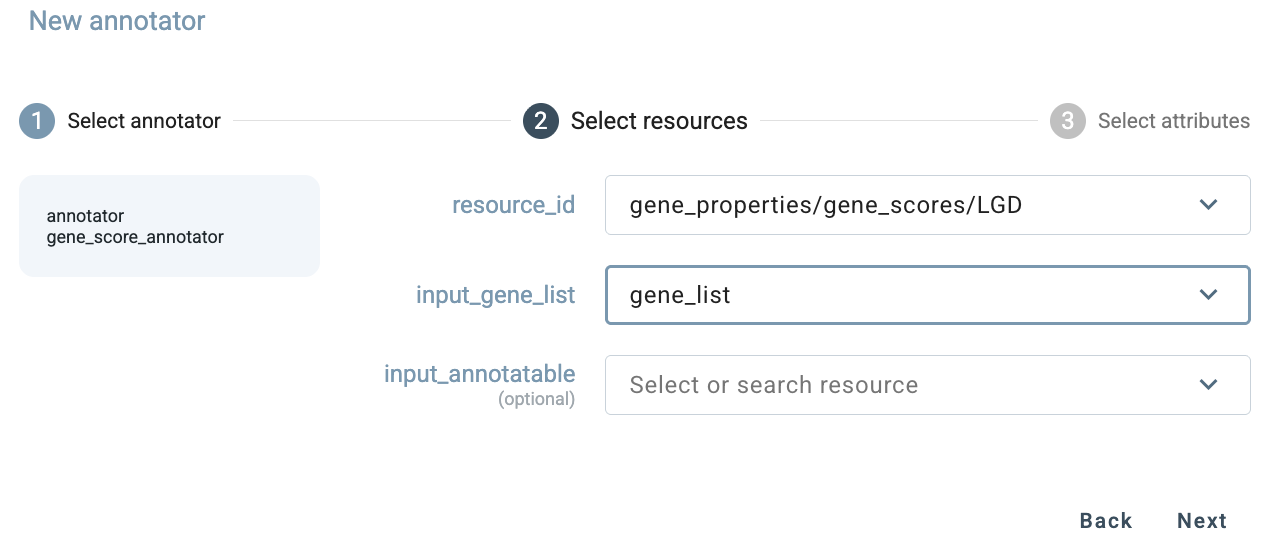
In the Configure annotator step, select gene_properties/gene_scores/LGD as the resource and set input_gene_list to the gene_list produced by the preceding effect_annotator. This allows the annotator to retrieve LGD scores for the genes affected by the input variant.
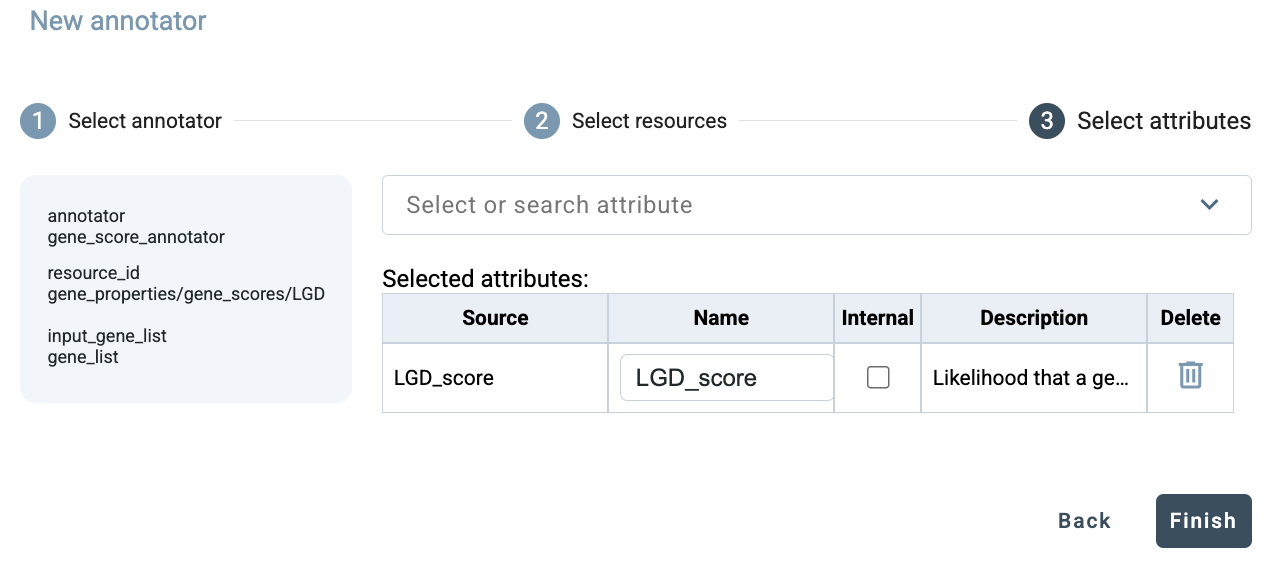
In the Configure attributes step, LGD_score and LGD_rank are selected by default. Remove LGD_rank using the delete icon and keep only LGD_score. Then click Next to continue.
In the Configure aggregation step, several aggregation methods are available for LGD_score. This setting is relevant only when the input is associated with two or more genes and therefore produces multiple LGD scores. Select the desired aggregation method, then click Finish to add the annotator to the pipeline.
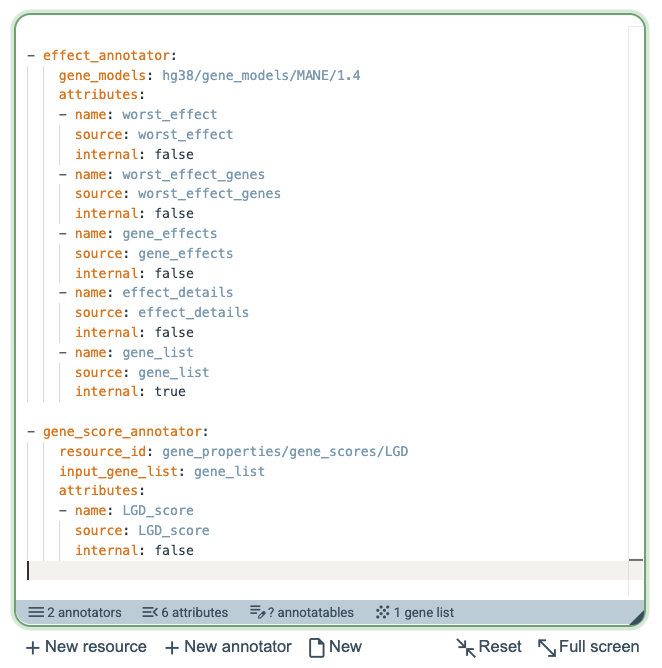
GAIn then adds the gene_score_annotator to the annotation pipeline editor using the correct syntax, including the specification that the gene_list produced by the effect_annotator should be used as input for this annotator. The summary bar at the bottom of the editor is updated accordingly and now shows that the pipeline contains 2 annotators and 6 attributes.

Add resources
Instead of extending a pipeline by adding an annotator, users can also extend it by adding a resource. In this case, GAIn guides the user from the resource side and then shows the annotators compatible with the selected resource. To add a resource, click New resource at the bottom of the annotation pipeline editor. This opens a five-step dialog, beginning with the Select resource step. Resources can be filtered by resource type using the drop-down menu or located using the search box. Each resource row provides three actions: the left icon opens the resource’s GRR page, where detailed information about the resource can be viewed; the middle icon selects the resource and proceeds through the remaining configuration steps; and the rightmost check-mark icon accepts all default settings and adds the resource directly to the pipeline. For this example, locate MANE/1.5 and click the middle icon to select it and continue.
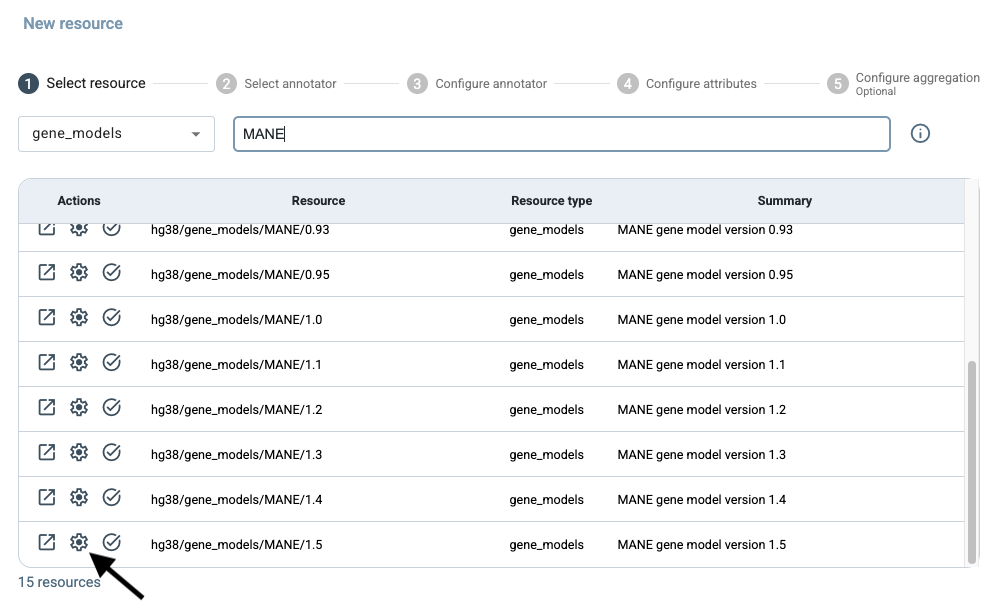
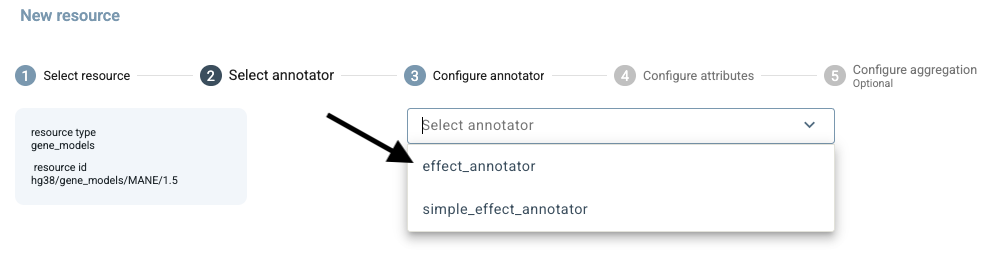
A gene models resource can be used by two types of effect annotators: effect_annotator and simple_effect_annotator. In the Select Annotator step, select effect_annotator, which provides more detailed consequence annotations, including the predicted effects of an allele change on transcripts and protein sequences.
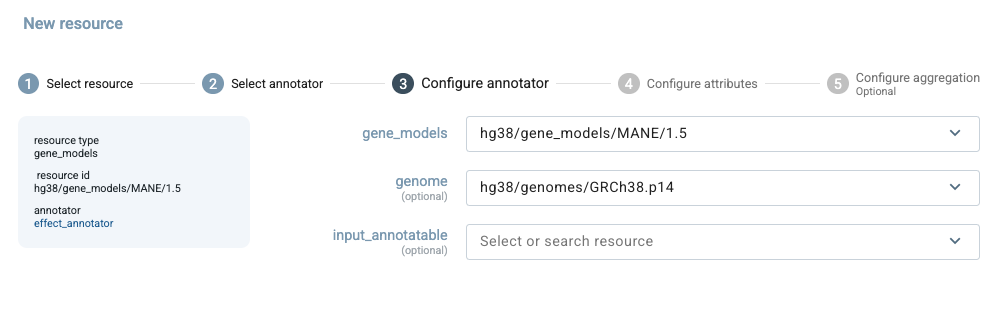
In the Configure annotator step, the selected gene models resource is shown automatically. A gene models resource may specify a reference genome through its reference_genome label, or a different genome resource can also be selected at this step. In this example, we select hg38/genomes/GRCh38.p14. By default, input_annotatable refers to the annotatable provided directly by the user. Because this simple pipeline contains no alternative annotatables, leave this field empty.
In the Configure attributes step, a default set of five attributes is selected for this resource type. worst_effect reports the most severe consequence, worst_effect_genes identifies the associated genes, gene_effects summarizes effects by gene, and effect_details provides further detail. gene_list contains the affected genes and is marked as internal so it can be passed to a downstream annotator, such as a gene_score_annotator. Additional attributes can be found using the search box. Because gene models describe variant consequences rather than numerical values, aggregation does not apply. Click Finish to add the resource after this fourth step.
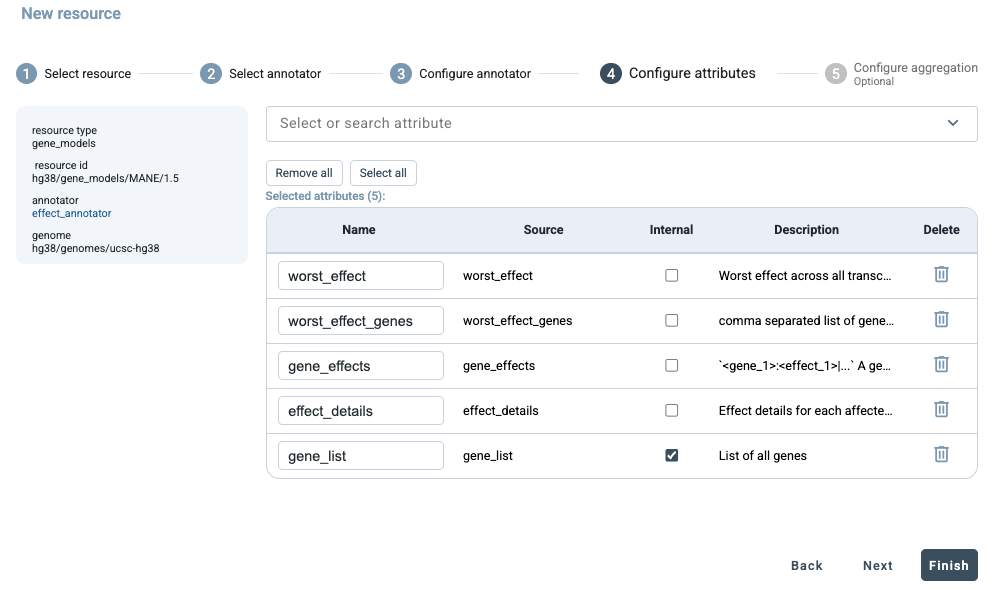
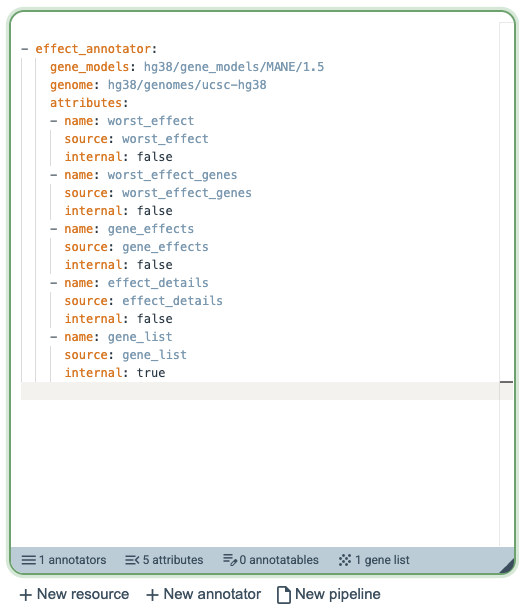
GAIn then adds the configured resource to the annotation pipeline as an effect_annotator using MANE/1.5 and the selected genome. The pipeline definition includes the five selected attributes, with gene_list marked as internal. The summary bar now shows 1 annotator, 5 attributes, and 1 gene list.
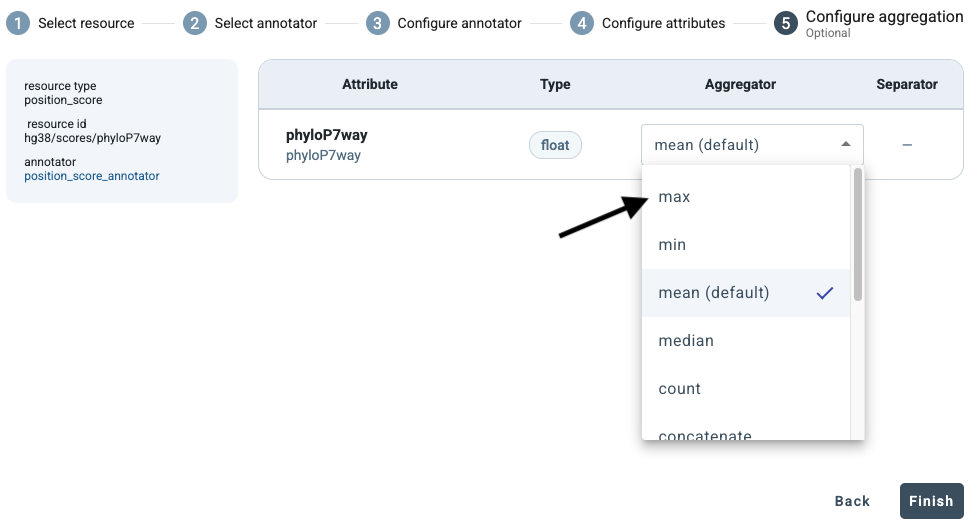
As another example, add the PhyloP7way position score resource and keep the default settings in the earlier configuration steps. This resource produces a single score attribute. In the Configure aggregation step, select max instead of the default mean. Aggregation affects only inputs that span more than one nucleotide. For a region, max reports the highest PhyloP score found within that region. Click Finish to add the resource with this configuration to the annotation pipeline.
In the next example, we will add the MPC resource, which uses hg19 coordinates, while the input to this pipeline is in hg38 coordinates. First, add the liftover/hg38_to_hg19 resource to the pipeline using the default configuration.
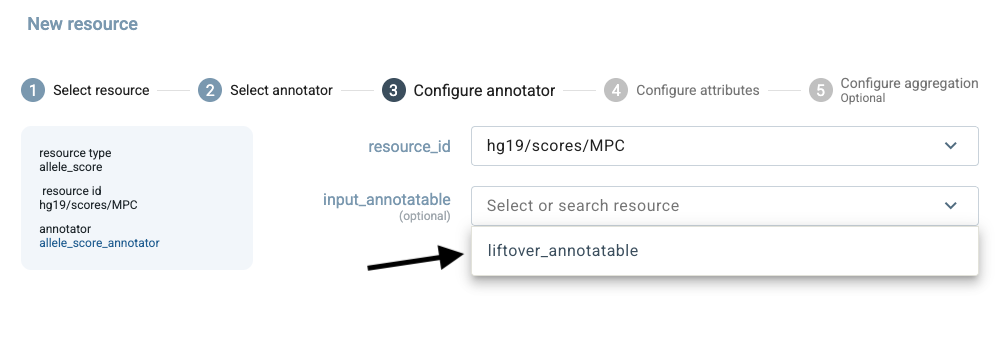
Next, add the hg19/scores/MPC allele score resource, which provides a pathogenicity score for missense variants. In the Configure annotator step, select liftover_annotatable as the input annotatable. If this field is left empty, GAIn uses the original hg38 input, which is incompatible with the hg19 resource. Using the lifted-over annotatable allows an hg38 input to be annotated with resources defined in hg19 coordinates.
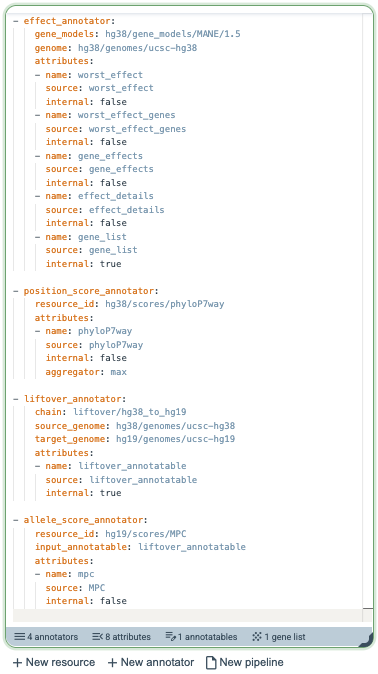
The completed pipeline is shown below. It contains 4 annotators and produces 8 attributes. It also provides 1 internal annotatable and 1 gene list for use by downstream annotators.
Registration and user accounts
The examples above show how a new annotation pipeline can be created directly in the GAIn web interface and used immediately for annotation. However, if the user leaves the page without saving, the newly created pipeline is lost. Registering for a GAIn account makes it possible to preserve this work and provides several additional conveniences.
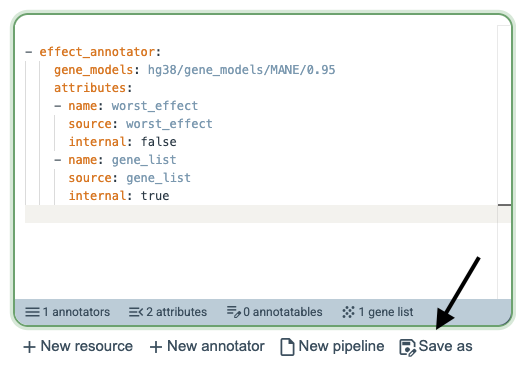
One important benefit of registration is the ability to save pipelines by clicking Save as. This allows users to keep custom pipelines for later use, compare alternative versions of a pipeline, and iteratively refine pipeline definitions without having to recreate them from scratch. Saved pipelines are especially useful when testing different combinations of annotators, resources, and attributes.
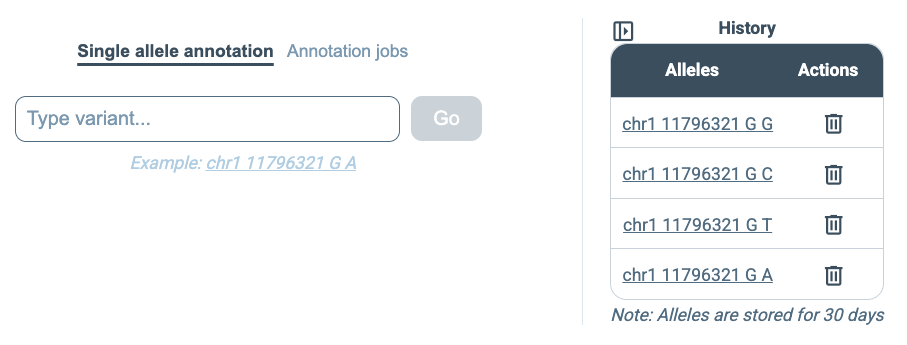
Registration also allows annotation results to be retained in the user account. This applies both to single annotatable annotation and to annotation jobs. Once an annotation has been run, it appears in the user’s history on the right side of the interface, making it possible to revisit earlier analyses, inspect their details, download previous results again, or rerun similar annotations without repeating the full setup.
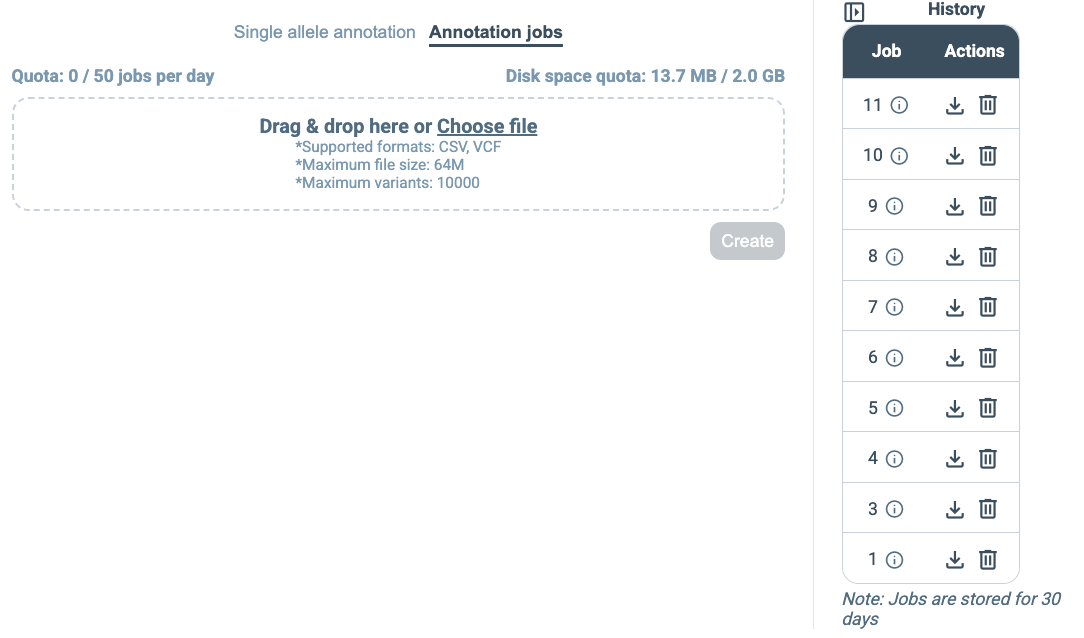
In addition, registered accounts are associated with usage quotas for annotation jobs. At present, the maximum accepted input file size is 64 MB, and the maximum number of annotatables per job is 10,000. Each user may submit up to 50 annotation jobs per day and may use up to 2 GB of storage space for saved data. These limits make it possible to support routine use of the web service while maintaining fair access across users.